

Why run an access review campaign?
Access review campaigns help Security and IT teams to securely control what software users can access, all while making sure employees can also successfully complete their work. From a least privilege and security perspective, ensuring that users only have the access they need, for only as long as they need it, reduces the access footprint of your company for sensitive systems and data. Running regular access review campaigns also helps you to achieve compliance with security standards and audit requirements.View all campaigns
On the Campaigns page, campaigns are sorted by state and type:- Running campaigns are currently in progress.
- Draft campaigns have not yet started.
- Completed campaigns have ended.
- Templates are saved campaign outlines used to create one-time or recurring scheduled campaigns.
How do campaign templates work?
If there’s a campaign pattern you use repeatedly, create a reusable campaign template instead of configuring the same campaign from scratch every time.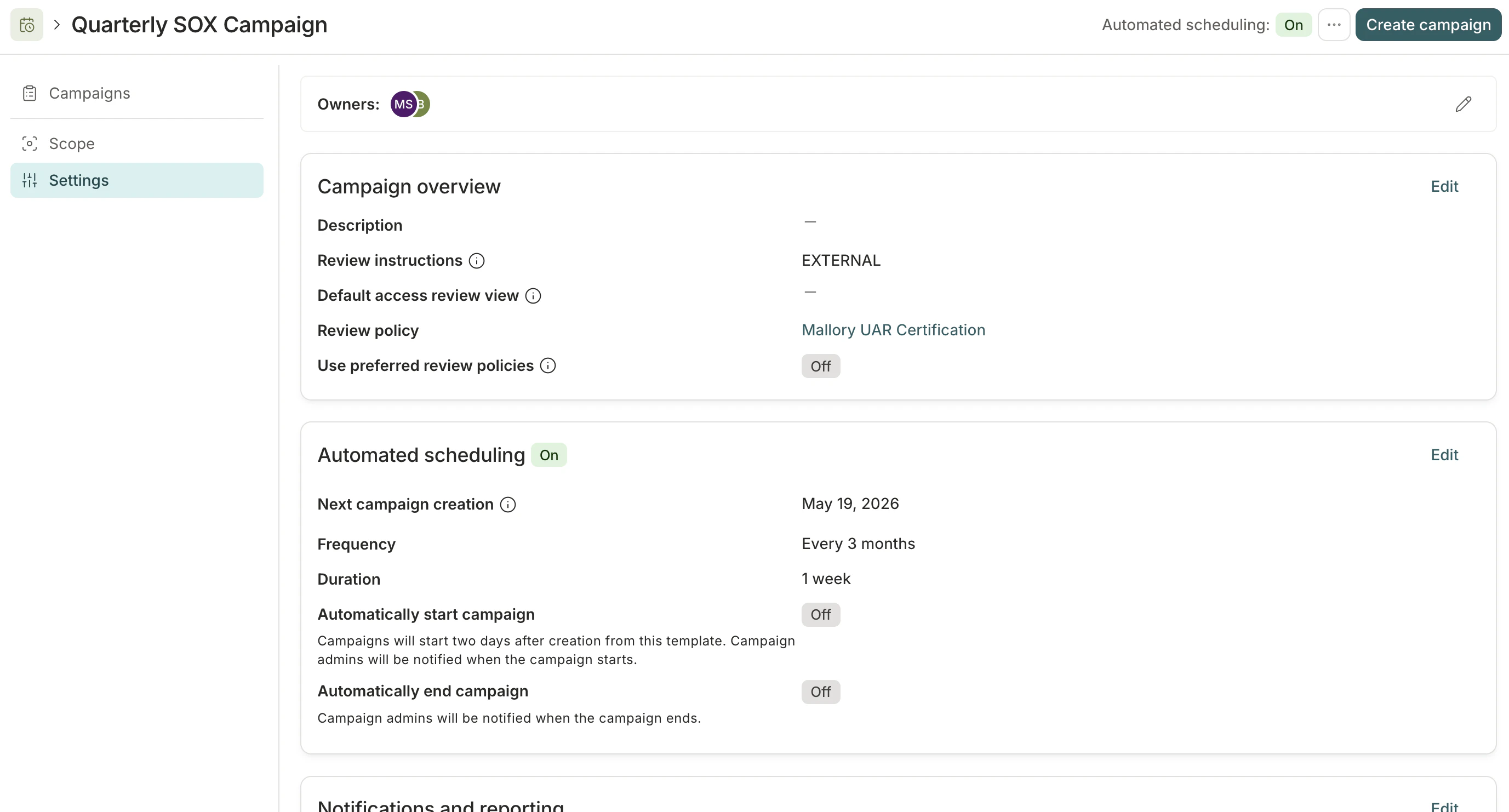
Create a new campaign
Follow this process to create a single campaign. Jump to Create a campaign template to set up a template that can be used to create many similar campaigns.Step 1: Set up the campaign
1
Navigate to Governance > Campaigns.
2
Click New campaign.
3
Fill out the form, providing the following information:
- Name: The campaign’s name, which will be displayed to reviewers and shown in the campaign list view.
- Description: The description of what this campaign entails and any directions you want to deliver to reviewers.
- Campaign type: Select Single instance, then set the Due date for the campaign.
-
Review type: Select the type of access review campaign you want to run:
- Entitlements: Review user access to specific entitlements or applications. This is the most common type of campaign.
- Access conflicts: Review user access that has triggered a violation in one of your enabled conflict monitors. This is a great option for quickly remediating high-risk access issues identified by your conflict monitors.
- Owner: The campaign’s owner, who will manage the campaign while it is in progress. You can set more than one campaign owner. Each owner must have the Campaign Administrator or Super Administrator user role in C1.
- Review policy: The campaign’s default review policy. If needed, you’ll be able to adjust the policy to be used for the review of individual entitlements later in the campaign creation process.
4
Click Continue. The campaign is created.
Step 2: Configure how the campaign will run
1
On the new campaign’s Configuration tab, review and update the details you’ve entered so far.
2
If you want to provide any instructions to reviewers about how to complete access reviews in this campaign, click Edit and enter the instructions in the Review instructions field.The instructions you enter will be displayed to all reviewers at the top of the page where they complete their access reviews. You can format your instructions using Markdown to add emphasis, links, and structure.
3
If you want all reviewers to receive their campaign tasks in the same format, select a Default access review view:
- By application: review access to one application at a time
- By user: review one user’s access at a time
- Unstructured: all the assigned reviews together in one list
4
By default, all campaign tasks will be created using the review policy you chose. If instead you want campaign tasks to use the review policies set on the entitlements or apps in the campaign, click Edit and click to turn on Use preferred review policies.If this option is enabled, C1 will apply policies using this order of precedence: entitlement, application, campaign.
5
By default, campaigns are started and ended manually. If you want to automatically start or end the campaign, find the Schedule section of the page and click Edit.
- To automatically start the campaign on a specific date and time, click to turn on Automatically start campaign, then set the scheduled start date.
- If the campaign is set to automatically start, choose whether to proceed with auto-start if there are unresolved campaign data accuracy issues. Campaign owners will be notified of any data accuracy issues when they are discovered.
- To automatically end the campaign on a specific date, click to turn on Automatically end campaign, then set the date.
- If the campaign is set to automatically end, choose whether incomplete reviews will be revoked or skipped when the campaign ends.
6
In the Notifications and reporting section, you can configure what notifications the campaign will automatically generate:
- Notify all reviewers with assigned review tasks when the campaign begins
- Notify all campaign owners and reviewers when the campaign ends
- When the campaign is complete, generate a campaign report and notify all campaign owners when it’s ready for download
7
If you want to use a Slack channel for communication about this campaign, click Add Slack channel. Enter a Slack channel name, either an existing channel in your workspace or the name for a new channel you want to create.All campaign owners and users assigned access reviews will be automatically added to this channel when the campaign starts.
Step 3: Choose what to review
Next, build a list of the resources that your campaign will review.1
On the Scope tab of your campaign, find the Apps and entitlements section of the page and click Make selections.
- To run a UAR on user access to specific permissions, click Review specific resources and select resources, then click Save. When selecting specific resources, you can use the filter bar to narrow results by Application, Resource type, Risk level, and Compliance framework. Select one or more values for any filter to find matching entitlements. Filters use OR logic within a single filter type and AND logic across filter types. For example, selecting risk levels “High” and “Critical” along with compliance framework “SOX” returns entitlements that are (High OR Critical) AND (SOX). OR
- To run a UAR on user access to applications, click Review application access and select apps, then click Save. OR
- To run a UAR on all of the resources of a given resource type within a specific app (such as all the groups within Google Workspace), click Review resources by type and select the resource types for each applicable application, then click Save. OR
- To run a UAR on all entitlements that match a certain risk level or compliance framework, click By criteria and select the relevant risk levels and compliance frameworks, then click Save. The campaign will include all entitlements that match the criteria you select when you prepare the campaign.
2
If you’re building a UAR reviewing specific resources, click the pencil icon to update the policy used to review specific entitlements, or the trashcan icon to remove an entitlement from the review.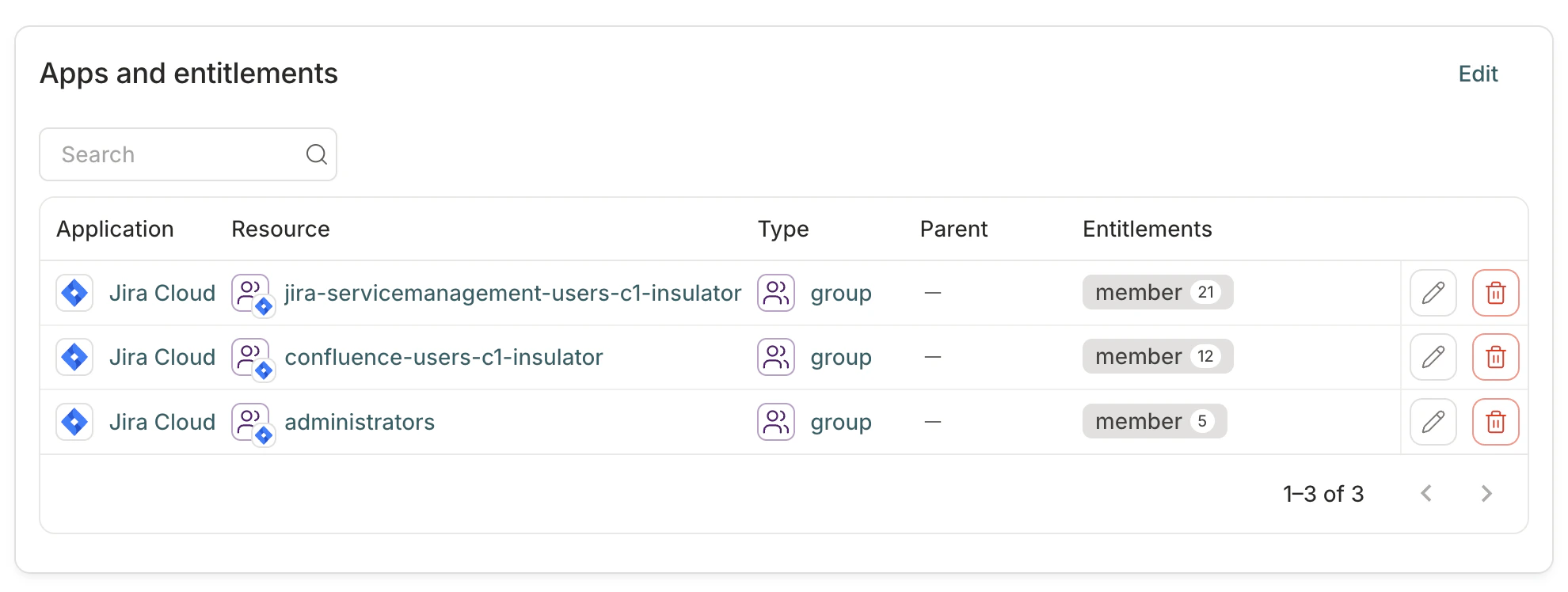
3
Optional. Find the User selection section of the page and click Make selections.If you don’t make any selections here, all users with access to the apps or resources you selected above will be added to the campaign. If you want to narrow the focus of the UAR:
- Click Select specific users to build a list of users whose access will be reviewed, then click Save. OR
-
Click Select users by criteria to review users who match the criteria you set, then click Save.
You can mix and match these options:
- User status in C1
- Direct reports of a manager
- User profile attributes. For example, to run an access review campaign on all the AcmeApp users in your company with the job title “Engineer”, create the parameter User AcmeJob is Engineer.
- Exclude users in specific groups from the campaign
- Click CEL expression to enter a CEL expression that describes the users you want to review. The expression must return a list of users to be valid.
4
Optional. Find the Account parameters section of the page and click Make selections.If you don’t make any selections here, all accounts with access to the apps or resources you selected above will be added to the campaign. If you want to narrow the focus of the UAR:
-
Click Select accounts by criteria to review app accounts that match the criteria you set, then click Save.
You can mix and match these options:
- No account owner
- Account status
- Account type
- Account domain (specifically, whether the email address associated with the account has been marked trusted by a C1 admin at your organization)
- Click CEL expression to enter a CEL expression that describes the accounts you want to review. The expression must return a list of accounts to be valid.
5
Optional. Find the Grant parameters section of the page and click Make selections.If you don’t make any selections here, all access grants of the apps or resources you selected above will be added to the campaign. If you want to narrow the focus of the UAR:
-
Click Select grants by criteria to review only the access grants that match the criteria you set, then click Save.
You can mix and match these options:
- New grants added within the time period you select or between two specific dates
- Temporary (time-limited) or permanent grants
- Grants that have not been used in the time period you select (this information is not available for all applications)
- Direct grants (permissions assigned directly to users) or inherited grants (permissions assigned to a group or role, which are “inherited” by users assigned to that group or role)
- Grants sourced from access profiles (check the box to exclude these grants from your campaign)
Step 4: Check data accuracy
If any of your selections are sourced from connectors or file uploads that have not been updated recently, you’ll see an indicator and a Your campaign might have data accuracy issues banner on the Accuracy tab.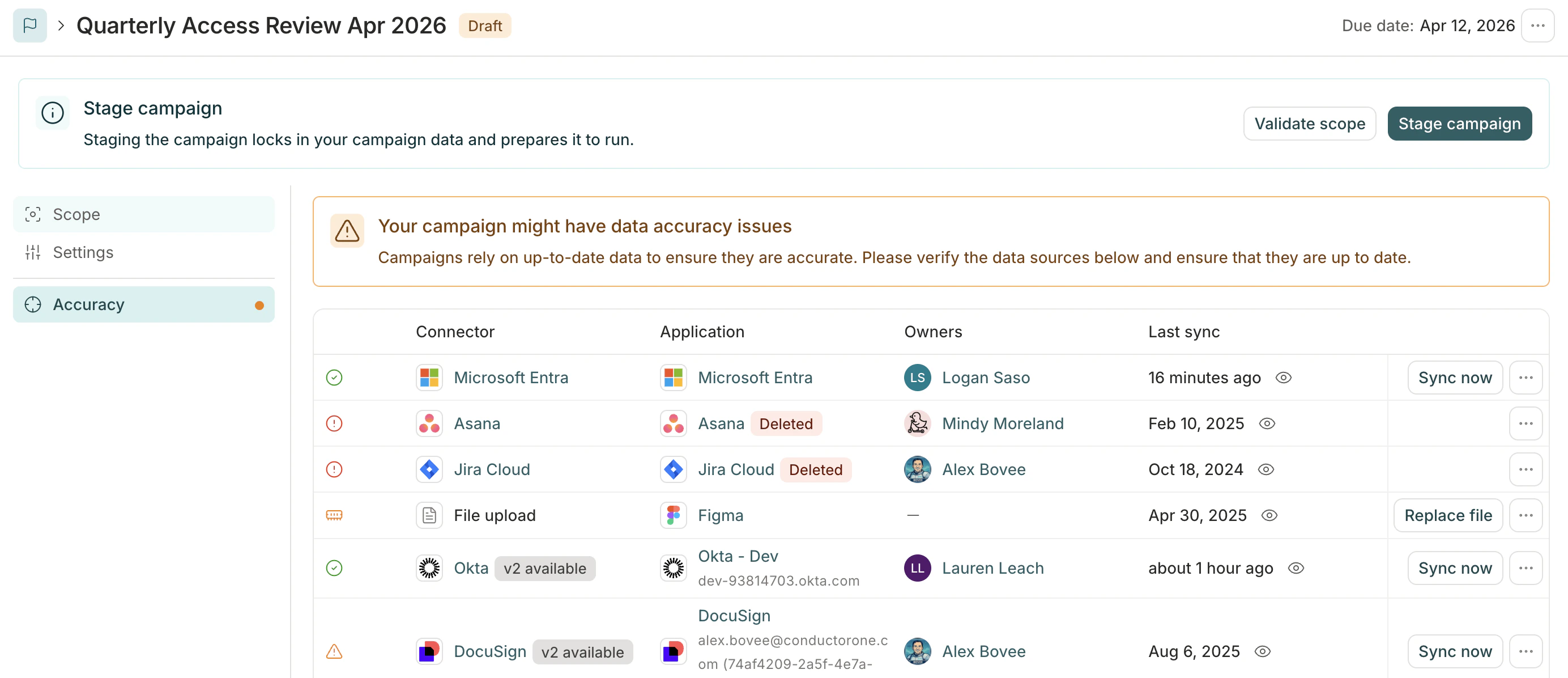
- A connector hasn’t synced for more than two days
- A file source hasn’t been updated in more than seven days
- A connector errored during the most recent sync
Step 5: Stage the campaign
1
When you’re ready, click Stage campaign. Staging a campaign generates the individual access review tasks, but does not launch the campaign. Depending on the size of the campaign, staging it might take several minutes.
2
Review the draft campaign’s details. If necessary, you can make changes on the Configuration tab, but you cannot alter the campaign’s scope or policy once it has been prepared.
Step 6: Start the campaign
If you’ve set up the campaign to automatically start, it will launch on the scheduled date. If not (or if you need to start the campaign sooner than the scheduled start date), follow these steps to start the campaign when you’re ready:1
When you’re ready, click Start campaign. Select whether C1 should email campaign kickoff notifications to the users who are assigned the access reviews in the campaign.
2
Click Start campaign. Again, depending on the size of the campaign, starting it might take several minutes.
Duplicate a past campaign
Instead of creating a campaign from scratch, you can save time and effort by duplicating a past campaign and tailoring it to your current needs. Duplicating a campaign is a quick way to reuse a past campaign’s settings for a one-off review. If you need to run similar campaigns on a regular schedule, create a campaign template instead.1
Navigate to Governance > Campaigns.
2
Locate and click on the name of the campaign that you want to duplicate.
3
From the more actions (…) menu, select Duplicate.
4
Review the campaign’s details and update the information as necessary.
5
Follow the instructions above to validate, stage, and start the duplicate campaign.
Create a campaign template
Step 1: Set up the template
1
Navigate to Governance > Campaigns.
2
Click New campaign.
3
Fill out the form, providing the following information:
- Name: The campaign’s name, which will be displayed to reviewers and shown in the campaign list view.
- Description: The description of what this campaign entails and any directions you want to deliver to reviewers.
- Campaign type: Select Template, then set the Campaign duration, or how long each campaign created from the template will run.
-
Review type: Select the type of access review template you want to create:
- Entitlements: Review user access to specific entitlements or applications. This is the most common type of campaign.
- Access conflicts: Review user access that has triggered a violation in one of your enabled conflict monitors. This is a great option for quickly remediating high-risk access issues identified by your conflict monitors.
- Owner: The campaign’s owner, who will manage the campaign while it is in progress. You can set more than one campaign owner, just be sure anyone you add has the Campaign Administrator or Super Administrator user role in C1.
- Review policy: The campaign’s default review policy. If needed, you’ll be able to adjust the policy to be used for the review of individual entitlements later in the campaign creation process.
4
Click Continue. The template is created.
Step 2: Configure how campaigns created from this template will run
You can set the template to create instances of the campaign on a date in the future or on a recurring schedule. You can also create an on-demand instance of the campaign at any time.1
On the new template’s Configuration tab, review and update the details you’ve entered so far.
2
If you want to provide any instructions to reviewers about how to complete access reviews in campaigns created from this template, click Edit and enter the instructions in the Review instructions field.The instructions you enter will be displayed to all reviewers at the top of the page where they complete their access reviews. You can format your instructions using Markdown to add emphasis, links, and structure.
3
If you want all reviewers to receive their campaign tasks in the same format, select a Default access review view:
- By application: review access to one application at a time
- By user: review one user’s access at a time
- Unstructured: all the assigned reviews together in one list
4
By default, all campaign tasks will be created using the review policy you chose. If instead you want campaign tasks to use the review policies set on the entitlements or apps in the campaign, click Edit and click to turn on Use preferred review policies.If this option is enabled, C1 will apply policies using this order of precedence: entitlement, application, campaign.
5
Optional. If you’d like to automatically create draft instances of this campaign, either once on a date in the future or regularly on a set schedule, go to the Schedule area of the page and click Edit.
6
Click to turn on Schedule.
7
Choose the date you want a draft instance of this campaign to be created.
8
Using the Frequency selector, choose a frequency option to automatically create recurring instances of the campaign, beginning on the date you chose and recurring at the frequency you set.Choose None if you only want to create a single scheduled instance of the campaign on the date you chose.New campaign drafts will be created on the scheduled dates, at around 8:30 AM Pacific time. The template’s owners will be notified by email that a new draft campaign has been set up.
9
By default, campaigns created from this template are started and ended manually. If you want to automatically start or end campaigns created from this template, configure these settings:
- To automatically start each campaign, click to turn on Automatically start campaign. Campaigns will auto-start two days after they are created from this template.
- If the campaign is set to automatically start, choose whether to proceed with auto-start if there are unresolved campaign data accuracy issues. Campaign owners will be notified of any data accuracy issues when they are discovered.
- To automatically end each campaign on the scheduled end date calculated from the campaign duration you set, click to turn on Automatically end campaign.
- If the campaign is set to automatically end, choose whether incomplete reviews will be revoked or skipped when the campaign ends.
10
In the Notifications and reporting section, configure whether to automatically send out notifications about the campaigns generated from this template:
- Notify all reviewers with assigned review tasks when a campaign begins
- Notify all campaign owners and reviewers when a campaign ends
- When a campaign is complete, generate a campaign report and notify all campaign owners when it’s ready for download
11
If you want to use a Slack channel for communication about this campaign, click Add Slack channel. Enter a Slack channel name, either an existing channel in your workspace or the name for a new channel you want to create.When a new campaign made from this template starts, all campaign owners and users assigned access reviews will be automatically added to this channel.When new campaign instances are created from this template, you’ll have a chance to change the Slack channel before starting the campaign.
Step 3: Choose what to review
Next, build a list of the resources that campaigns made from this template will review.1
On the Scope tab of your template, find the Apps and entitlements section of the page and click Make selections.
- To run a UAR on user access to specific permissions, click Review specific resources and select resources, then click Save. When selecting specific resources, you can use the filter bar to narrow results by Application, Resource type, Risk level, and Compliance framework. Select one or more values for any filter to find matching entitlements. Filters use OR logic within a single filter type and AND logic across filter types. For example, selecting risk levels “High” and “Critical” along with compliance framework “SOX” returns entitlements that are (High OR Critical) AND (SOX). OR
- To run a UAR on user access to applications, click Review application access and select apps, then click Save. OR
- To run a UAR on all of the resources of a given resource type within a specific app (such as all the groups within Google Workspace), click Review resources by type and select the resource types for each applicable application, then click Save. OR
- To run a UAR on all entitlements that match a certain risk level or compliance framework, click By criteria and select the relevant risk levels and compliance frameworks, then click Save. The campaign will include all entitlements that match the criteria you select when you prepare the campaign.
2
If you’re building a UAR reviewing specific resources, click the pencil icon to update the policy used to review specific entitlements, or the trashcan icon to remove an entitlement from the review.
3
Optional. Find the User selection section of the page and click Make selections.If you don’t make any selections here, all users with access to the apps or resources you selected above will be added to the campaign. If you want to narrow the focus of the UAR:
- Click Select specific users to build a list of users whose access will be reviewed, then click Save.
-
Click Select users by criteria to review users who match the criteria you set, then click Save.
You can mix and match these options:
- User status in C1
- Direct reports of a manager
- User profile attributes. For example, to run an access review campaign on all the AcmeApp users in your company with the job title “Engineer”, create the parameter User AcmeJob is Engineer.
4
Optional. Find the Account parameters section of the page and click Make selections.If you don’t make any selections here, all accounts with access to the apps or resources you selected above will be added to the campaign. If you want to narrow the focus of the UAR:
-
Click Select accounts by criteria to review app accounts that match the criteria you set, then click Save.
You can mix and match these options:
- No account owner
- Account status
- Account type
- Account domain (specifically, whether the email address associated with the account has been marked trusted by a C1 admin at your organization)
5
Optional. Find the Grant parameters section of the page and click Make selections.If you don’t make any selections here, all access grants of the apps or resources you selected above will be added to the campaign. If you want to narrow the focus of the UAR:
-
Click Select grants by criteria to review only the access grants that match the criteria you set, then click Save.
You can mix and match these options:
- New grants added within the time period you select or between two specific dates
- Temporary (time-limited) or permanent grants
- Grants that have not been used in the time period you select (this information is not available for all applications)
- Direct grants (permissions assigned directly to users) or inherited grants (permissions assigned to a group or role, which are “inherited” by users assigned to that group or role)
- Grants sourced from access profiles (check the box to exclude these grants from your campaign)
Dynamic scope re-evaluation for tag-filtered templates
When you use risk level or compliance framework filters to select entitlements for a campaign template, C1 saves the filter criteria rather than a fixed list of entitlements. Each time a campaign is created from the template and prepared, the system re-evaluates the tag criteria against the current state of your entitlements. This means:- Entitlements that have been tagged since the template was last configured are automatically included in the next campaign.
- Entitlements that have had tags removed are automatically excluded.
- You do not need to manually update the template scope when entitlement tags change.
Step 4: Review and start a campaign created from a template
When a new campaign is created from the template, it is shown on the template’s Campaigns tab and also added to the Drafts tab. Edit the campaign as needed, then follow Steps 4 through 6 in Create a new campaign to review current data accuracy, stage the campaign, and start the campaign (if necessary).Frequently asked questions about creating campaigns
What happens if I add an empty entitlement to the campaign?
What happens if I add an empty entitlement to the campaign?
In short, nothing. If you select a resource for your campaign that does not have any grants on any of its entitlements, no review tasks will be created for the resource, as there is nothing to review. You can add these resources to your campaign without impact, or leave them out: it’s up to you.
Can I add or edit campaign instructions once the campaign is underway?
Can I add or edit campaign instructions once the campaign is underway?
Yes, you can! Go to the running campaign’s Configuration tab and add or edit the campaign instructions. Reviewers will see the new version of the instructions as soon as you click Save.
What happens when new entitlements are tagged after I set up a tag-scoped campaign template?
What happens when new entitlements are tagged after I set up a tag-scoped campaign template?
If your campaign template scope is filtered by risk level or compliance framework, newly tagged entitlements are automatically included the next time a campaign is created from the template and prepared. C1 saves the tag criteria, not a static list, so the scope is re-evaluated against current entitlement tags at each campaign preparation.
Can I combine tag-based scope with manually selected entitlements?
Can I combine tag-based scope with manually selected entitlements?
Tag-based filtering is used to narrow the list of entitlements shown when selecting specific resources. You select entitlements from the filtered results, and for campaign templates, the filter criteria are saved for dynamic re-evaluation. You cannot mix manually selected individual entitlements with a purely tag-driven dynamic scope in the same campaign.
What tag types can I use for scoping campaigns?
What tag types can I use for scoping campaigns?
You can filter entitlements by risk level and compliance framework — these are the built-in entitlement attribute types in C1. To use these filters, first create attribute values in Settings > Tags and assign them to your entitlements. See Setting entitlement attributes for setup instructions.
Can I change the scope type after creating a campaign?
Can I change the scope type after creating a campaign?
No. The scope type you choose when creating a campaign cannot be changed afterward. If you need a different scope type, create a new campaign.
What happens if I select 'All' conflict monitors and a new monitor is enabled later?
What happens if I select 'All' conflict monitors and a new monitor is enabled later?
If you scope a campaign by All conflict monitors, the campaign includes all violations from every enabled monitor at the time the campaign is prepared. Monitors enabled after the campaign is prepared are not included. To include new monitors, create a new campaign.